How to Fish writes your save when you press Save, Main Menu or Quit in the pause menu, and it also autosaves every minute. Since patch 1.0.12 saves sync through Steam Cloud, but a save only reaches the cloud once you have launched and cleanly closed the game on the computer where it lives. A manual copy of the save folder is still the safest protection before you sync between devices or try a mod.
Find the save folder on Windows
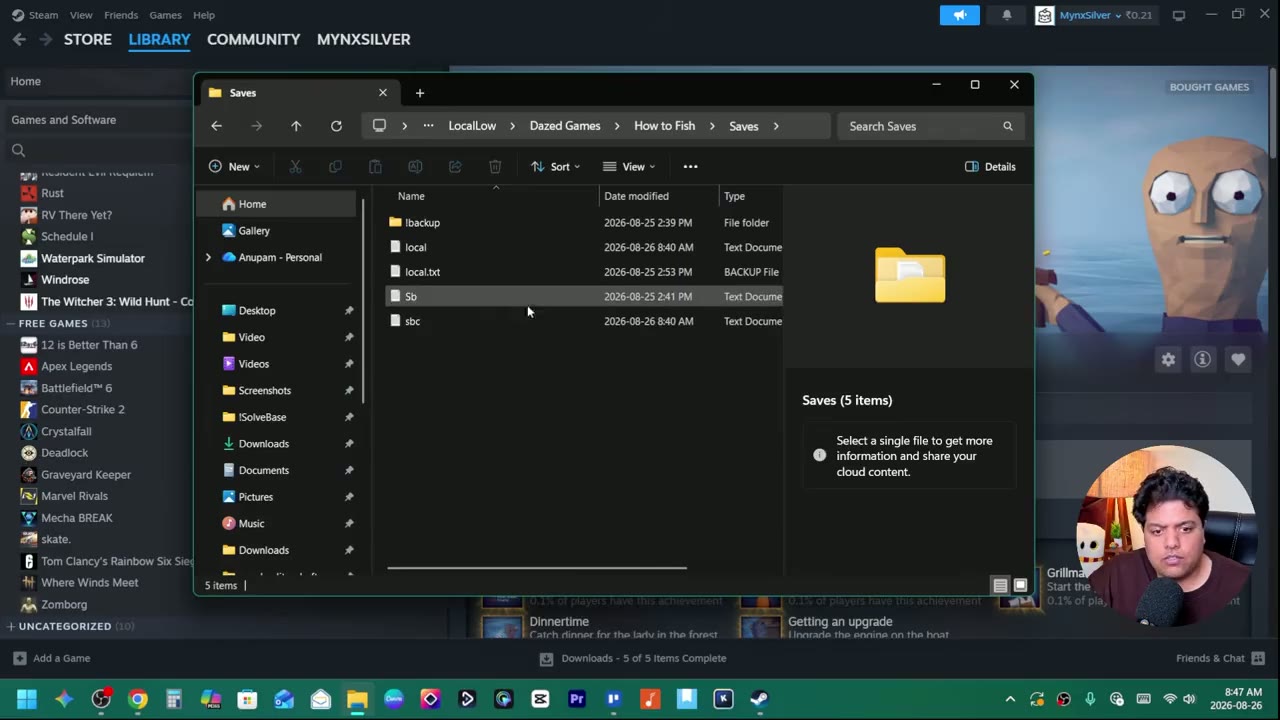
Open File Explorer, click the address bar, type %localappdata%low and press Enter. That opens the LocalLow folder. From there go into Dazed Games, then How to Fish, then Saves. The full path is %USERPROFILE%\AppData\LocalLow\Dazed Games\How to Fish\Saves.
Each world you created is a text file named after its save, next to a !backup folder that the game fills itself. On a Steam Deck the same folder sits inside the game's Proton prefix.
Back up a save
- Close the game, or at least return to the main menu.
- Copy the save file, or the whole How to Fish folder, to a folder of your own, for example a dated backup folder on the desktop.
- To restore, copy it back into Saves with the game closed.
You can also duplicate a world: copy the file, give the copy a new name, and change the name field at the top of the file to match. It then appears as a separate entry under Host Game, Load Game. The same file also holds money, inventory and progress, and some videos show editing those to unlock everything. That is cheating, and it can break the save, so leave those fields alone.
What the game protects for you
- Since 1.0.6: the game saves when you press Save, Main Menu or Quit, and it autosaves every minute, so a crash costs about a minute.
- Since 1.0.10: items dropped on the ground are saved, up to 64, with weapons, tools, quest items and creatures kept first.
- Since 1.0.11: saves are checked for corruption before loading, and a backup copy is kept.
- Since 1.0.12: Steam Cloud sync.
Move a save between PC and Steam Deck
- Update both devices to 1.0.12 or later and sign in to the same Steam account.
- On the device that has the progress you want, load that world, press Save, then leave through Main Menu or Quit.
- Wait until Steam reports the cloud sync is complete; the game's Properties, General tab shows the Steam Cloud state.
- Only then start the game on the other device and load the world. Check the island and equipment before you continue.
Do not force-quit to move faster: the clean exit is what writes the save. If both devices already have different progress, close the game on both and back up both save folders separately before letting Steam choose one. The game does not merge two campaigns.
If a save is missing
Check that both devices run the same version, restart Steam after updates, and look for "pending upload" in the Steam Cloud status, which means the file has not left the first device yet. A fake server called "Game Name" in the load list means a save failed to load; that bug was addressed in 1.0.6 and later patches. Never replace your only copy while testing a fix.
The Steam Deck runs the game well. Early guides called it Playable rather than Verified because of small text, but patch 1.0.11 announced Steam Deck Verified.
In co-op, the world belongs to the host, so the host's save folder is the one to back up.
Source video